
Sounds
Sound is a great way to provide feedback to player actions and events, background sounds can also give your scene more context and improve the player’s immersion into it.
📔 Note: Keep in mind that sounds are only heard by players who are standing within the parcels that make up the scene where the sound was generated, even if they would otherwise be in hearing range. Players can also chose to turn off all sounds on their settings.
Supported sound formats vary depending on the browser, but it’s recommended to use .mp3.
.wav files are also supported but not generally recommended as they are significantly heavier.
Play sounds #
The easiest way to play a sound is to add an Audio Source component visually on the Scene Editor and set it to Start Playing and Loop. See Add Components .
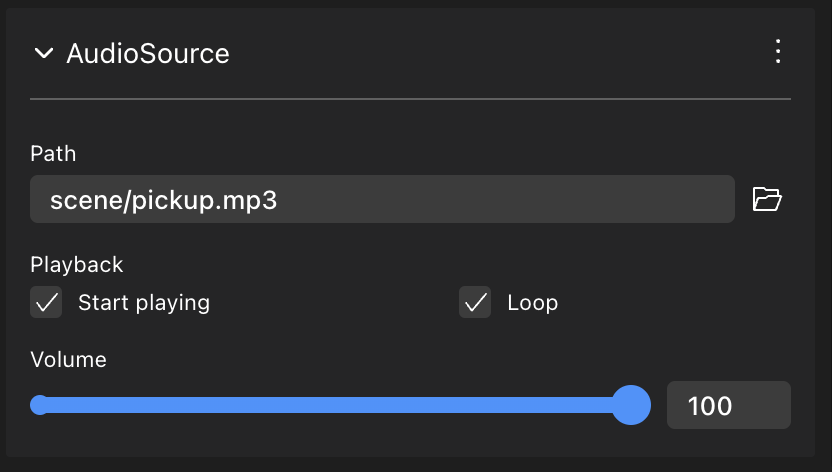
You can also trigger the playing of a sound in a no-code way via Actions, see Make any item smart .
To play a sound via code, use the AudioSource.playSound function.
// Create entity
const sourceEntity = engine.addEntity()

// Play sound
AudioSource.playSound(sourceEntity, 'assets/sounds/sound-effect.mp3')
The sound file must be inside the project folder. In the example above, the audio file is located in an assets/sounds folder, which is located at root level of the scene project folder.
📔 Note: The
AudioSourcecomponent must be imported via
import { AudioSource } from "@dcl/sdk/ecs"See Imports for how to handle these easily.
The AudioSource.playSound() function takes the following arguments:
entity: On what entity to apply the sound. The sound will be heard from this entity’s position, meaning it gets louder as the player approaches it.src: The location of the sound file within your project.💡 Tip: For more clarity, we recommend keeping your sound files separate in a
assets/soundsfolder inside your scene.resetCursor: (optional) If true, the sound always starts from the beginning. Otherwise it continues from the current cursor position. Useful for pausing and resuming.
Another way to play sounds is to manually create an AudioSource component on an entity. Use this approach to have more control over the sound, for example to make it loop or set the volume.
// Create entity
const sourceEntity = engine.addEntity()

// Create AudioSource component
AudioSource.create(sourceEntity, {
	audioClipUrl: 'sounds/sound-effect.mp3',
	loop: true,
	playing: true,
})
The following properties can be set:
audioClipUrl: The location of the sound file within your project.playing: If true, the sound starts playing. You can create a sound withplayingset to false, and then set it to true at a later time.volume: (optional) The volume of the sound file. 1 by default, which is full volume.pitch: (optional) Modify the pitch of a sound. 1 is the default, make it lower for a deeper sound and higher for a higher pitch sound.💡 Tip: To prevent a sound effect from becoming too repetitive during a game, it’s useful to randomize some slight variations to the sound’s pitch every time it plays.
currentTime: (optional) 0 by default. Set this value to avoid starting from the beginning of the sound file. This is a seek command: the renderer never writes the current position of the sound back into it. To know where a sound actually is, see Playback position reports .
Each entity can only have a single AudioSource component, that can only play a single clip at a time. This limitation can be easily overcome by modifying the audio source at the time of playing a new sound, or by including multiple invisible child entities, each with their own sound.
📔 Note: Sounds are played on each player’s local instance. Other nearby players won’t hear the same sounds unless their local scene explicitly plays them too.
Stopping sounds #
To stop an entity from playing its sound, use the AudioSource.stopSound() function. You only need to specify the entity, since each entity has a single AudioSource component, and each AudioSource component plays a single file at a time.
AudioSource.stopSound(sourceEntity)
Another way to stop a sound is to set the playing property to false.
// Create entity
const sourceEntity = engine.addEntity()

// Create AudioSource component
AudioSource.create(sourceEntity, {
	audioClipUrl: 'sounds/explosion.mp3',
	playing: true,
})

// Define a simple function
function stopSound(entity: Entity) {
	// fetch mutable version of audio source component
	const audioSource = AudioSource.getMutable(entity)

	// modify its playing value
	audioSource.playing = false
}

// call function
stopSound(sourceEntity)
Looping #
To keep a sound playing in a continuous loop, set the loop field of the AudioSource component to true before you start playing it.
// Create entity
const sourceEntity = engine.addEntity()

// Create AudioSource component
AudioSource.create(sourceEntity, {
	audioClipUrl: 'sounds/sound-effect.mp3',
	playing: true,
	loop: true,
})
Looping sounds is especially useful for adding background music or other background sounds.
Set volume #
You can set the volume property of the AudioSource component to change the volume of a sound.
The volume is expressed as a number from 0 to 1.
// Create entity
const sourceEntity = engine.addEntity()

// Create AudioSource component
AudioSource.create(sourceEntity, {
	audioClipUrl: 'sounds/sound-effect.mp3',
	playing: true,
	volume: 0.5,
})
📔 Note: Of course, the volume of a sound is also affected by the distance of the player from the audio source. As the player walks away, the volume will be lower.
Global sounds #
By default, all sounds from an AudioSource are positional. This means they appear to generate from the position of the Transform component, and will sound louder as the player walks closer. But you can also configure a sound to be global, so that the volume is constant, no matter where the player is standing. This is ideal for using on background music, notification sounds, and other non-positional sound.
📔 Note: Global Sounds are a feature that’s only supported in the DCL 2.0 desktop client.
To make a sound global, set the global property to true.
AudioSource.create(sourceEntity, {
	audioClipUrl: 'sounds/music.mp3',
	playing: true,
	global: true,
})
Play a segment of a sound #
To play a segment of a longer sound file, use the playSoundSegment() in the SDK Utils library. See
SDK7 Utils
.
You can also achieve this by explicitly set the currentTime property on an AudioSource component, and then stopping it after waiting for a period of time.
Audio events #
The AudioEvent component is written by the renderer, not by your scene. It reports the state of the sound that an entity’s AudioSource (or AudioStream) is playing: loading, ready, playing, paused, etc. Use the audioEventsSystem to react to these reports.
Use audioEventsSystem.registerAudioEventsEntity to define a function that runs every time the audio state of an entity changes. Your function can check the new state and respond accordingly.
import { engine, AudioSource, audioEventsSystem, MediaState } from '@dcl/sdk/ecs'

const sourceEntity = engine.addEntity()

AudioSource.create(sourceEntity, {
	audioClipUrl: 'sounds/music.mp3',
	playing: true,
})

audioEventsSystem.registerAudioEventsEntity(sourceEntity, (audioEvent) => {
	switch (audioEvent.state) {
		case MediaState.MS_PLAYING:
			console.log('audio started PLAYING')
			break
		case MediaState.MS_PAUSED:
			console.log('audio is PAUSED')
			break
		case MediaState.MS_ERROR:
			console.log('audio ERROR')
			break
	}
})
The audioEvent object passed to the function contains the following properties:
state: The new state of the sound, expressed as a value of theMediaStateenum. See Stream state for the full list of possible values.timestamp(number): A counter that the renderer increments on every report it writes for the entity. It is not a time value, only use it to tell reports apart or to order them.
Query the latest report for an entity at any time with audioEventsSystem.getAudioState(). It returns undefined if the renderer hasn’t written any report yet.
To stop listening, use audioEventsSystem.removeAudioEventsEntity(). Use audioEventsSystem.hasAudioEventsEntity() to check if an entity is currently registered.
Playback position reports #
📔 Note: Playback position reports require an SDK version that includes them and an explorer that implements them. The DCL 2.0 desktop client is the first to do so. On explorers that don’t, the properties described below stayundefined, andgetAudioPlayback()always returnsundefined.
While an AudioSource clip is playing, the renderer also writes reports of the playback position into the AudioEvent component, every time the playhead moves. These reports carry the following optional properties, in addition to state and timestamp:
tickNumber(number): The scene tick in which the position was sampled. It matches thetickNumberof the EngineInfo component in that same tick.currentOffset(number): The playback position of the clip, in seconds, at that tick.clipLength(number): The total length of the clip, in seconds, when known.
These reports are the only way to know what the player is actually hearing. The renderer starts a clip 100 to 250 milliseconds after your scene asks for it, and that delay is different every time. The currentTime property of the AudioSource component doesn’t help either: it’s a seek command that your scene writes and the renderer never updates, so reading it back only tells you what you last set. Rely on the reports instead whenever your gameplay needs to follow the sound: rhythm games, effects that fire on the beat, or aligning a sound to a video.
Use audioEventsSystem.registerAudioPlaybackEntity to define a function that runs once per frame with the newest position report for that entity. It’s skipped on frames where no new position arrived. Functions registered with registerAudioEventsEntity do not run for reports that only update the position.
Your function receives the reading already worked out against your scene’s clock, as { report, sceneTime, offset }. report is the raw AudioEvent if you need clipLength or the state, offset is the position in seconds, and sceneTime is explained in the next section.
audioEventsSystem.registerAudioPlaybackEntity(sourceEntity, ({ report, offset }) => {
	console.log(`clip at ${offset}s of ${report.clipLength ?? 'unknown'}s`)
})
Use audioEventsSystem.getAudioPlayback() to read the latest report that carries a position, for example to draw a progress bar. It returns undefined until the renderer reports a position, so always check for that before using the value. To stop listening, use audioEventsSystem.removeAudioPlaybackEntity().
engine.addSystem(() => {
	const playback = audioEventsSystem.getAudioPlayback(sourceEntity)
	if (!playback || playback.currentOffset === undefined || playback.clipLength === undefined) return

	const progress = playback.currentOffset / playback.clipLength
	// ... update a progress bar, etc
})
Sync gameplay to the sound #
A report reaches your scene a few frames after the renderer sampled it. Don’t compare currentOffset to your clock at the moment your function runs, or you’ll be off by however long the report took to arrive. It has to be compared against your clock in the tick the position was sampled.
The SDK keeps that per-tick history for you, which is why registerAudioPlaybackEntity hands you sceneTime: the scene clock in seconds at the tick the reading was taken, paired with offset, the clip position at that same moment.
Subtracting one from the other gives the moment the audible clip started. Keep that, and the clip’s position at any later time is a single subtraction.
import { engine, AudioSource, audioEventsSystem, MediaState } from '@dcl/sdk/ecs'

const sourceEntity = engine.addEntity()

// Your own scene clock, in milliseconds
let clockMs = 0
engine.addSystem((dt) => {
	clockMs += dt * 1000
})

// The moment the sound you can actually hear started, on that same clock
let originMs: number | undefined

audioEventsSystem.registerAudioPlaybackEntity(sourceEntity, ({ report, sceneTime, offset }) => {
	if (report.state !== MediaState.MS_PLAYING) return

	originMs = sceneTime * 1000 - offset * 1000
})

AudioSource.playSound(sourceEntity, 'sounds/music.mp3', true)

// At any moment, the clip is at about (clockMs - originMs) milliseconds
clockMs - originMs is your best estimate of the clip’s position at any moment between two reports. Use it to schedule effects on the beat, or to judge how well timed a player’s input was. If the explorer doesn’t send position reports, the callback never runs, originMs stays undefined, and your scene should fall back to its own clock.
If you’d rather handle the raw reports, audioEventsSystem.getSceneTimeAtTick(tickNumber) gives you the same per-tick lookup on its own. It works for VideoEvent reports too.
📔 Note: currentOffset is where the decoder is reading, which isn’t exactly what reaches the speakers. The sound card and its buffers add a few tens of milliseconds on top, and no property reports that. It’s roughly constant for a given device, so if you need accuracy finer than a tick, measure it once at the start and subtract it.
💡 Tip: TheVideoEventcomponent reportstickNumberandcurrentOffsetfor videos in the same way, see Video events . Use both to keep a sound and a video aligned.
Audio streaming #
See Audio streaming to learn how you can play a live audio stream from an external source.